This morning I opened Snapkin on my phone after a new build and the top of the screen looked wrong. Behind the clock there was a white strip, where the app’s light grey background used to be.
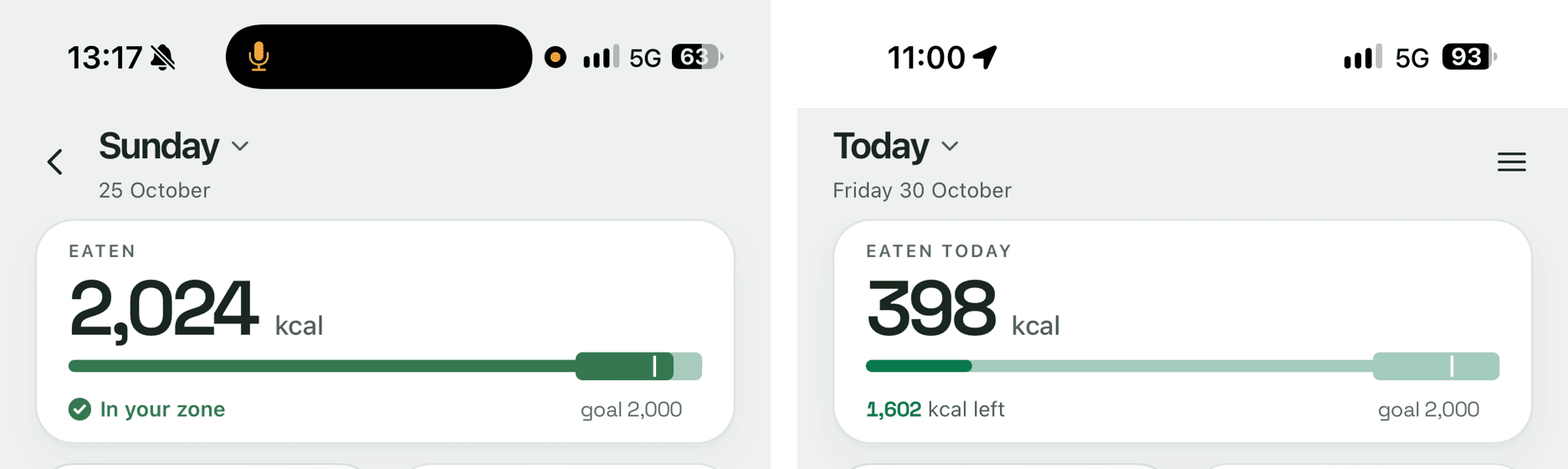
Snapkin is a Svelte web app inside a WKWebView, wrapped by Capacitor
(more on that setup in my App Store rejections post
). Nothing in the app’s code touched that area. The good build came from my old Mac. The bad one was the first build from my new Mac. The only code changes between the two were on the History screen.
What did change was the Mac. I’d just moved the iOS builds from an old M1 (Xcode 26.6) to a new M5 laptop (Xcode 27.1). So the first builds from it were built with the iOS 27.1 SDK. An app built with a newer SDK gets the newer OS behaviour. That was my main suspect.
It sits on top of the page#
Opening a sheet gave the first real clue. The sheet dims everything behind it, except that strip.
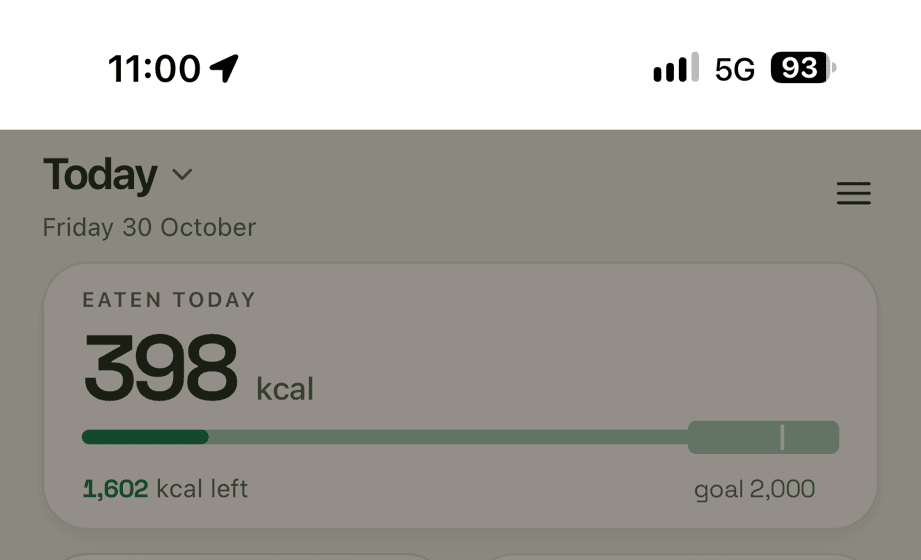
The dim is a regular position: fixed element in the web view. If it can’t cover the strip, the strip isn’t part of the page. It’s drawn by iOS, on top of the WKWebView.
The strip is also exactly 62pt tall. That is the height of the top safe area on this phone. The status bar itself is only 54pt tall on the iOS 27 simulator. So it isn’t Capacitor’s status bar plugin resizing things either.
The scroll edge effect#
Since iOS 26, every UIScrollView gets an “edge effect” at the top and bottom. That is the frosted fade you see under the status bar when content scrolls behind it. A WKWebView has a scroll view inside it. So it gets one too. In its “hard” style it’s a solid band with a thin line at the bottom.
I couldn’t make the simulator switch to that style by tapping around. So I forced it in a debug build:
webView?.scrollView.topEdgeEffect.style = .hard
That draws a band that ends on exactly the same pixel row as on my phone, thin line included. On the simulator the band is frosted rather than pure white. But its size and position match to the pixel.
The fix#
Snapkin’s page already leaves the area behind the clock empty, with env(safe-area-inset-top). So all the edge effect ever does is paint the app’s background the wrong colour. I hide both edge effects on the web view’s scroll view, in the CAPBridgeViewController subclass the app already has:
class SnapkinBridgeViewController: CAPBridgeViewController {
    override func capacitorDidLoad() {
        // ... registering the app's own plugins

        hideScrollEdgeEffects()
    }

    private func hideScrollEdgeEffects() {
        guard #available(iOS 26.0, *), let scrollView = webView?.scrollView else { return }

        scrollView.topEdgeEffect.isHidden = true
        scrollView.bottomEdgeEffect.isHidden = true
    }
}
I built the same code twice with the hard style forced. Once without the fix, once with it. The pink area is every pixel that differs between the two screenshots:
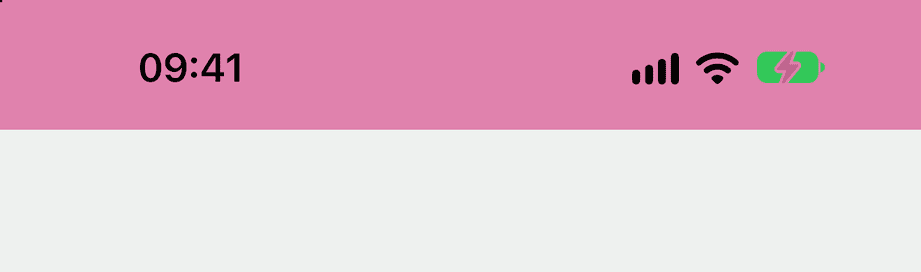
That’s the full 62pt band and not a single pixel of the page below it. With the fix in, forcing the hard style no longer brings the band back.
I still don’t know what makes iOS switch to the hard style on a real device. The simulator never did it on its own.
One more thing. By the time I built the fix, the M5 was on Xcode 27.2. App Store Connect refused that upload with error 90534, “Unsupported SDK or Xcode version”. It only takes builds from a released Xcode, or the latest release candidate. So that TestFlight build went back to the old M1. ¯\_(ツ)_/¯